
Yes, you can! To send text messages from the mobile app please follow the steps below:
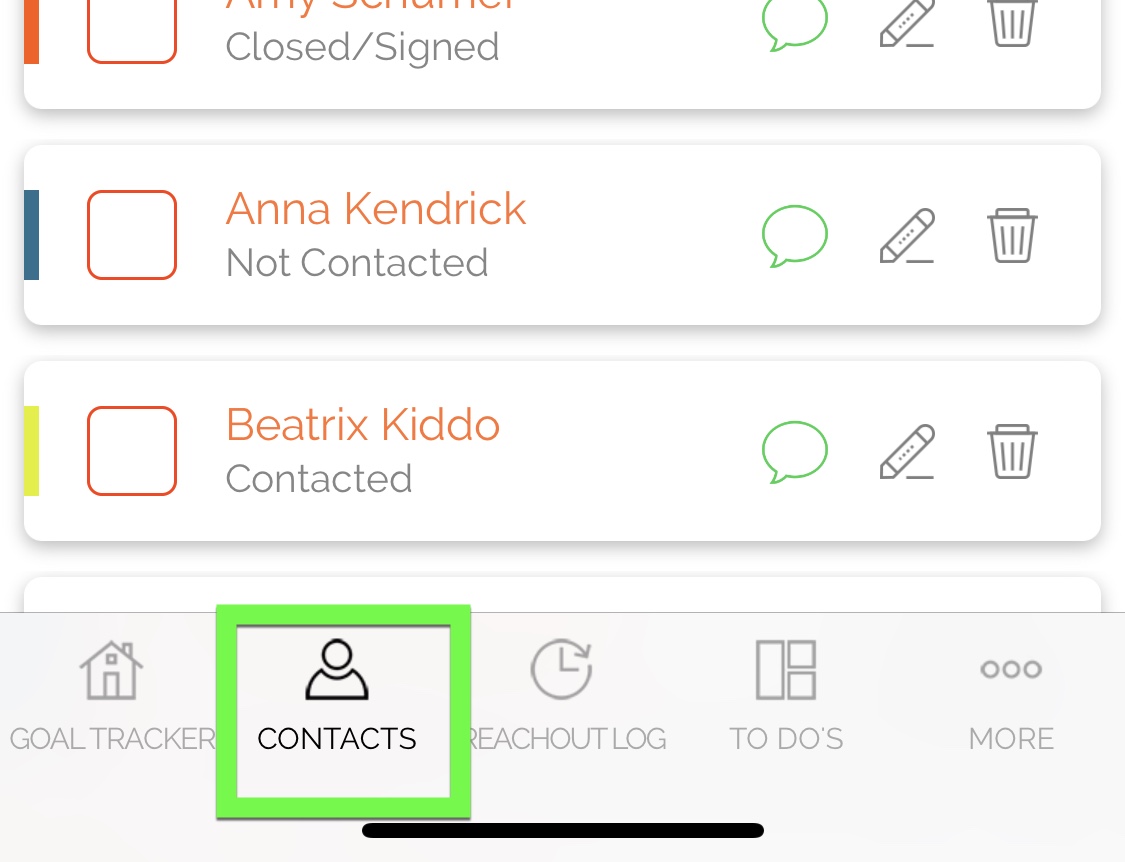
1. Tap Contacts on the bottom menu bar to bring you to the Contact List page:
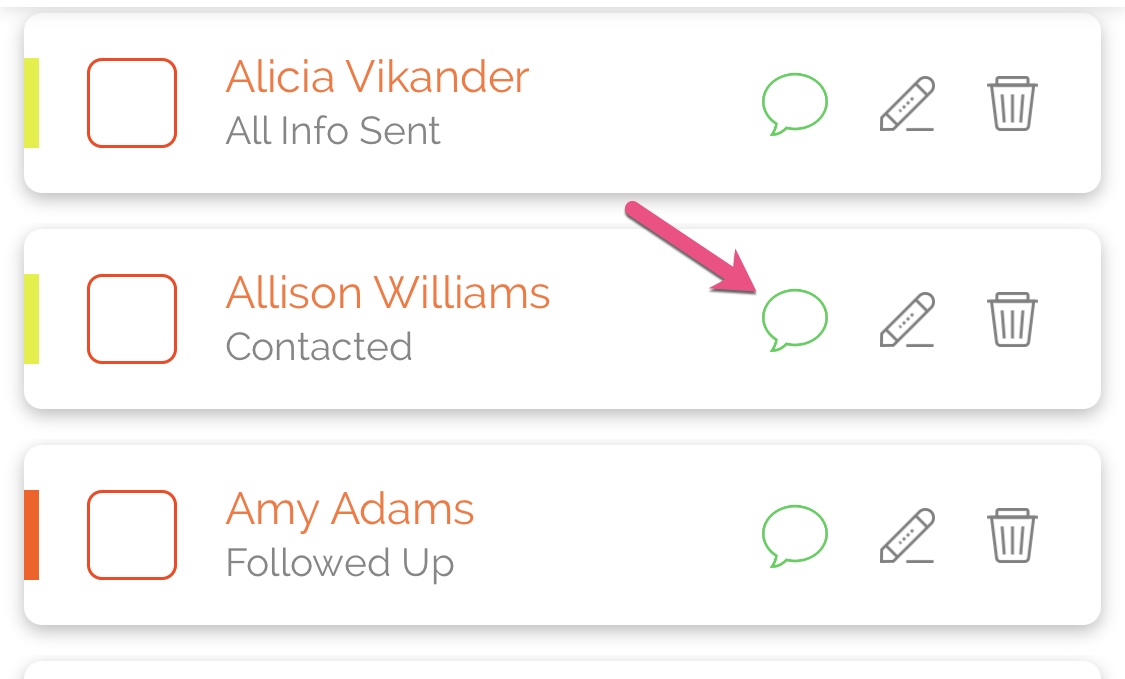
2. Find the contact you want to text and click the green quote icon next to their name.
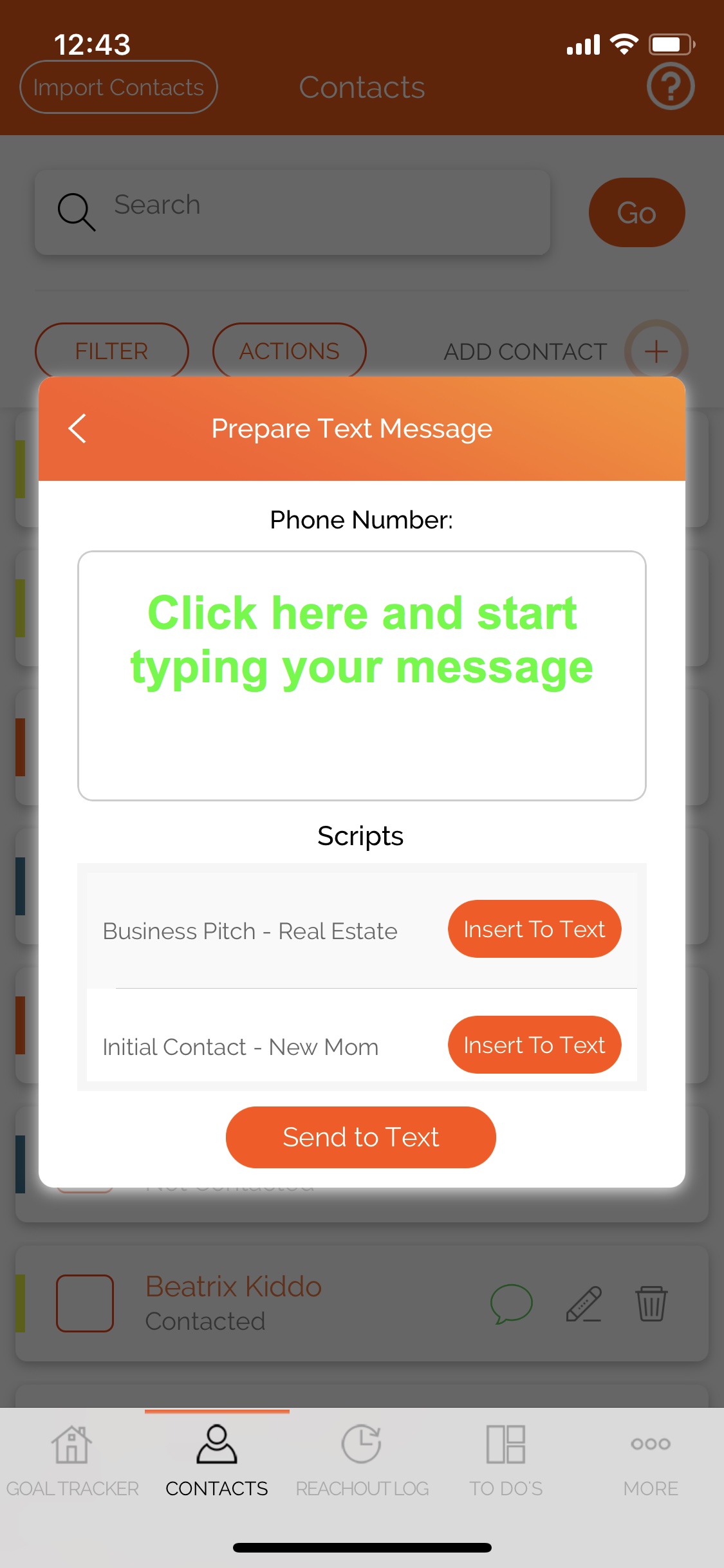
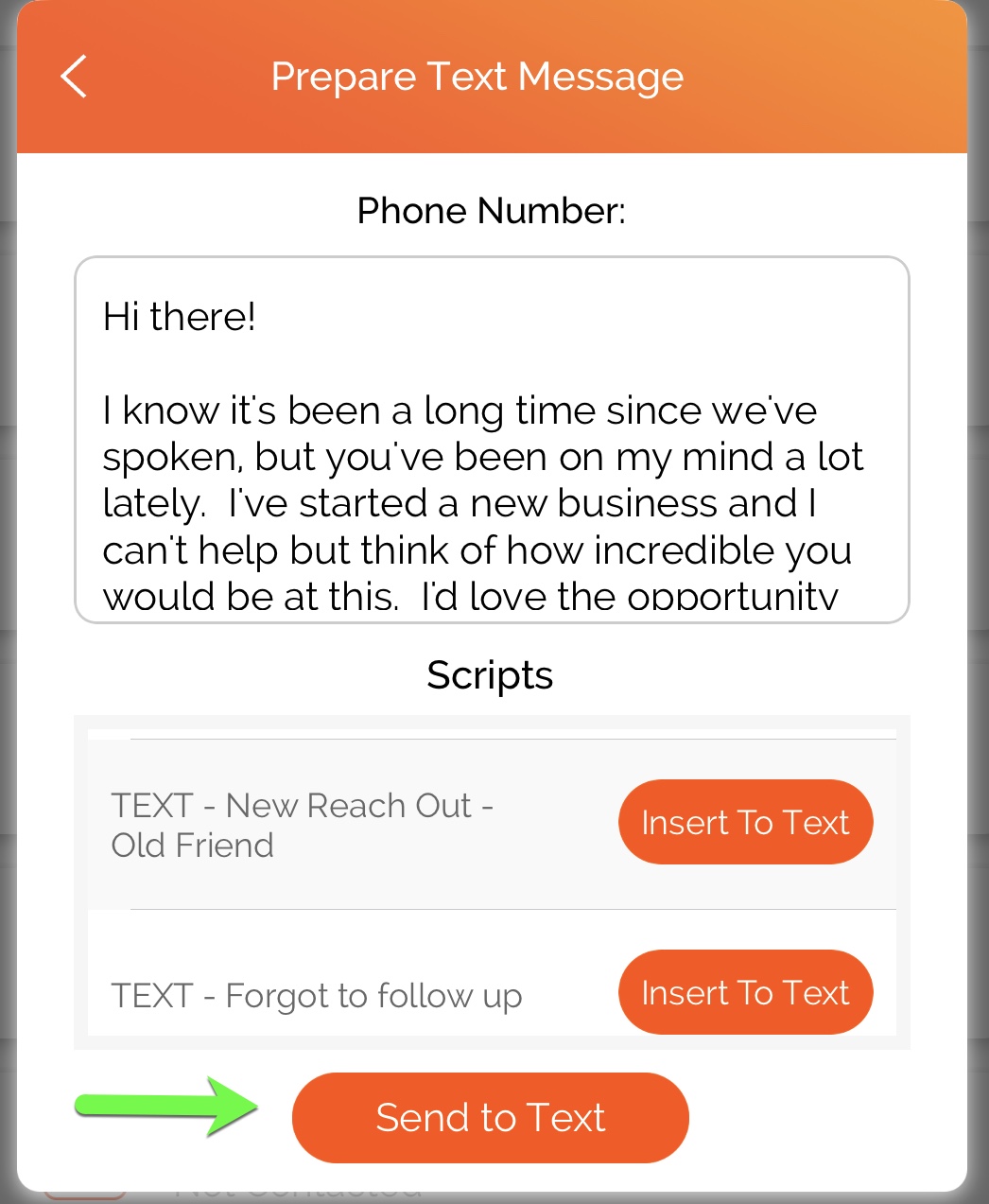
3. This will bring up the text modal. There are two ways you can enter your text - click in the box and type the message out manually, OR choose a message from your list of scripts saved in Hilo (Hilo messages that start with "TEXT" are formatted without replacement tags so they are easier to send) by clicking "Insert to Text" next to the appropriate script.
OR
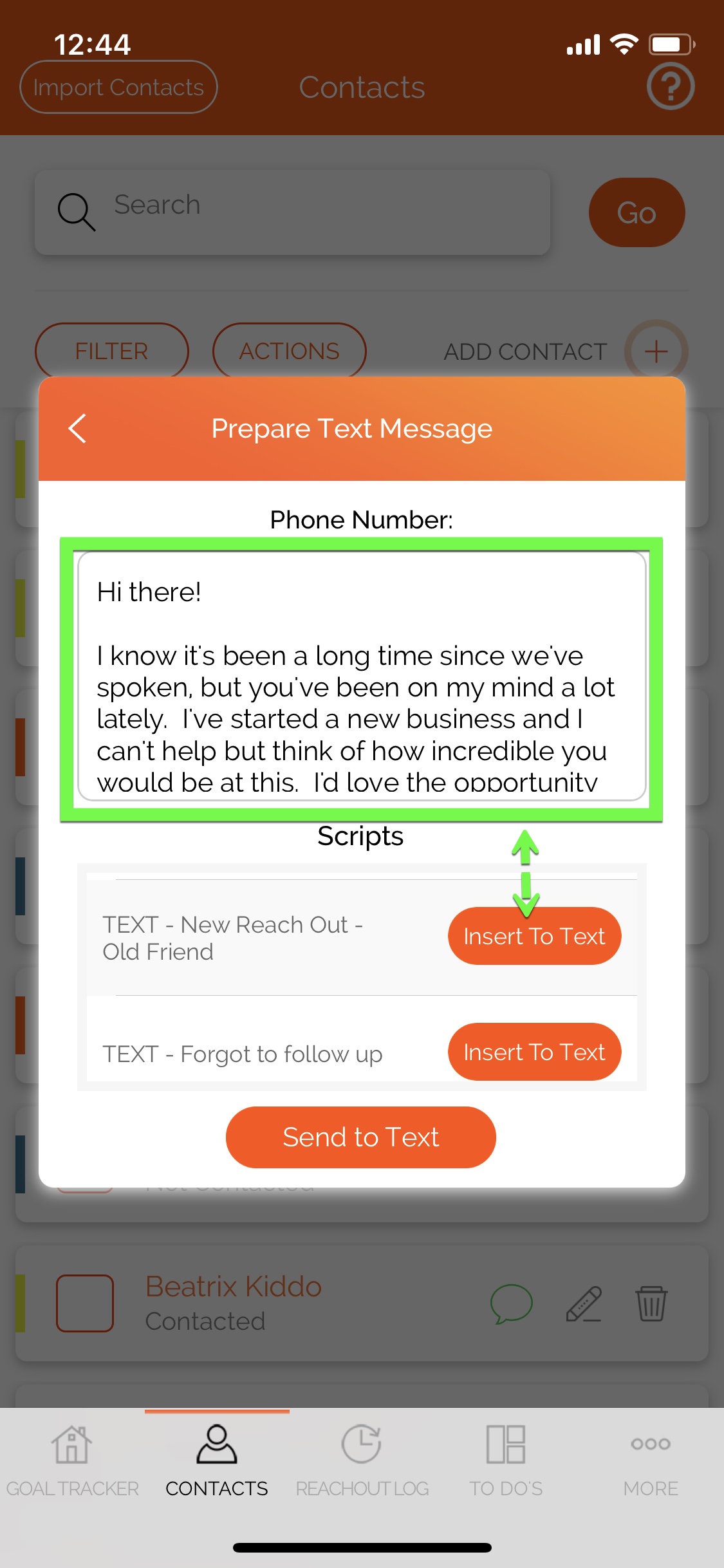
4. Once you have confirmed and edited the message to your liking, click the "Send to Text" button.
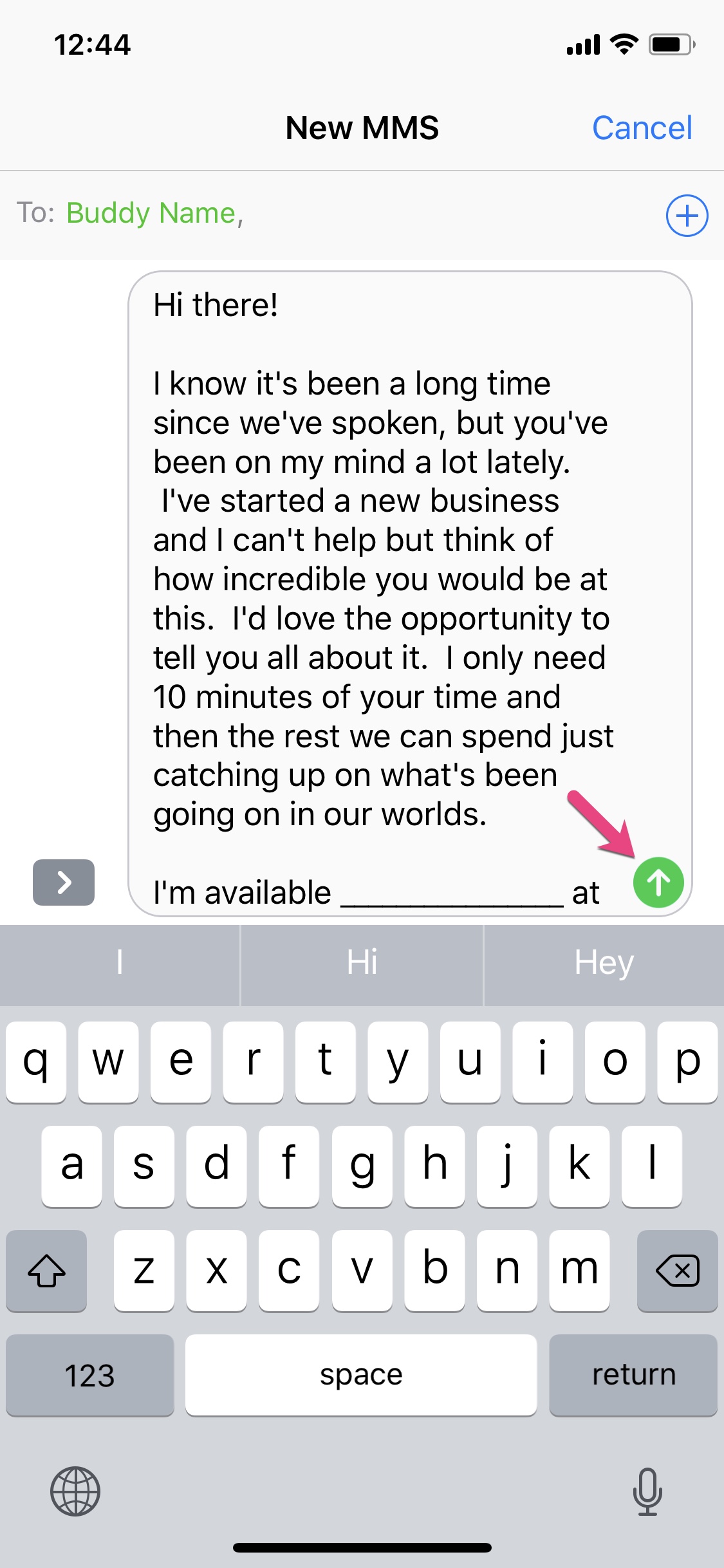
5. This will access your phone's messaging application. Once you're there you can edit the message further (please note only the message finalized in Hilo will be saved as a reach out - no edits made in your phone's editor will be saved in the reach out details) and then click "Send".
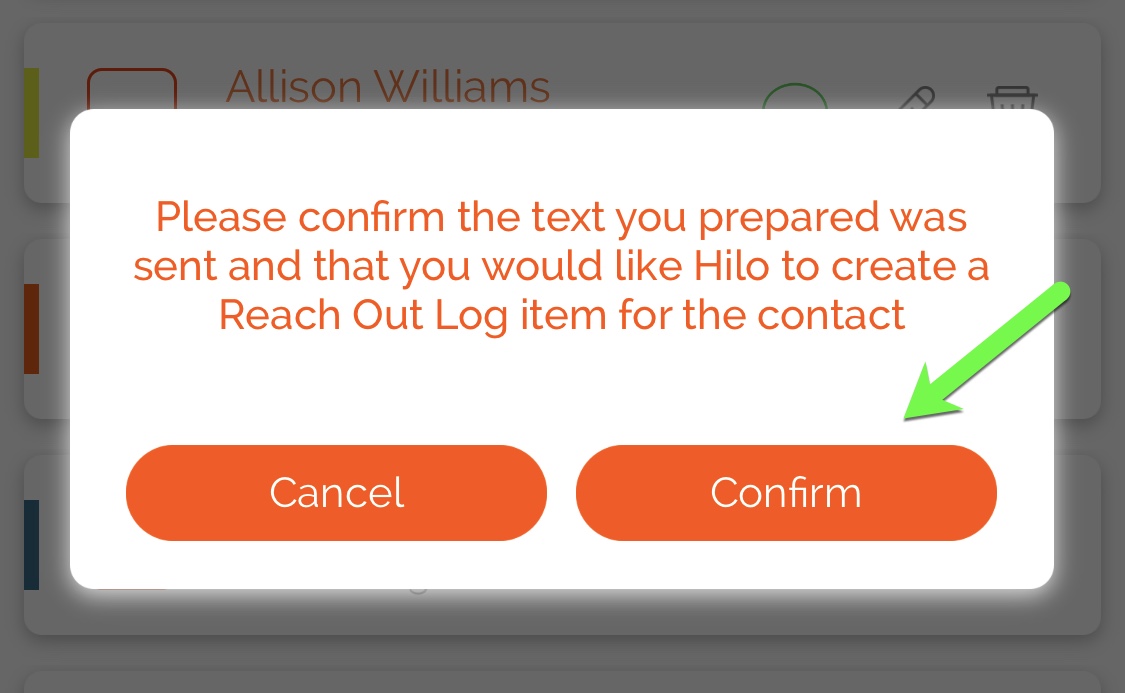
6. This will send your message to the contact and you will be brought back to Hilo to confirm that the message was sent and that you want to log it as a reach out for the contact. Click "Confirm" to save the reach out.
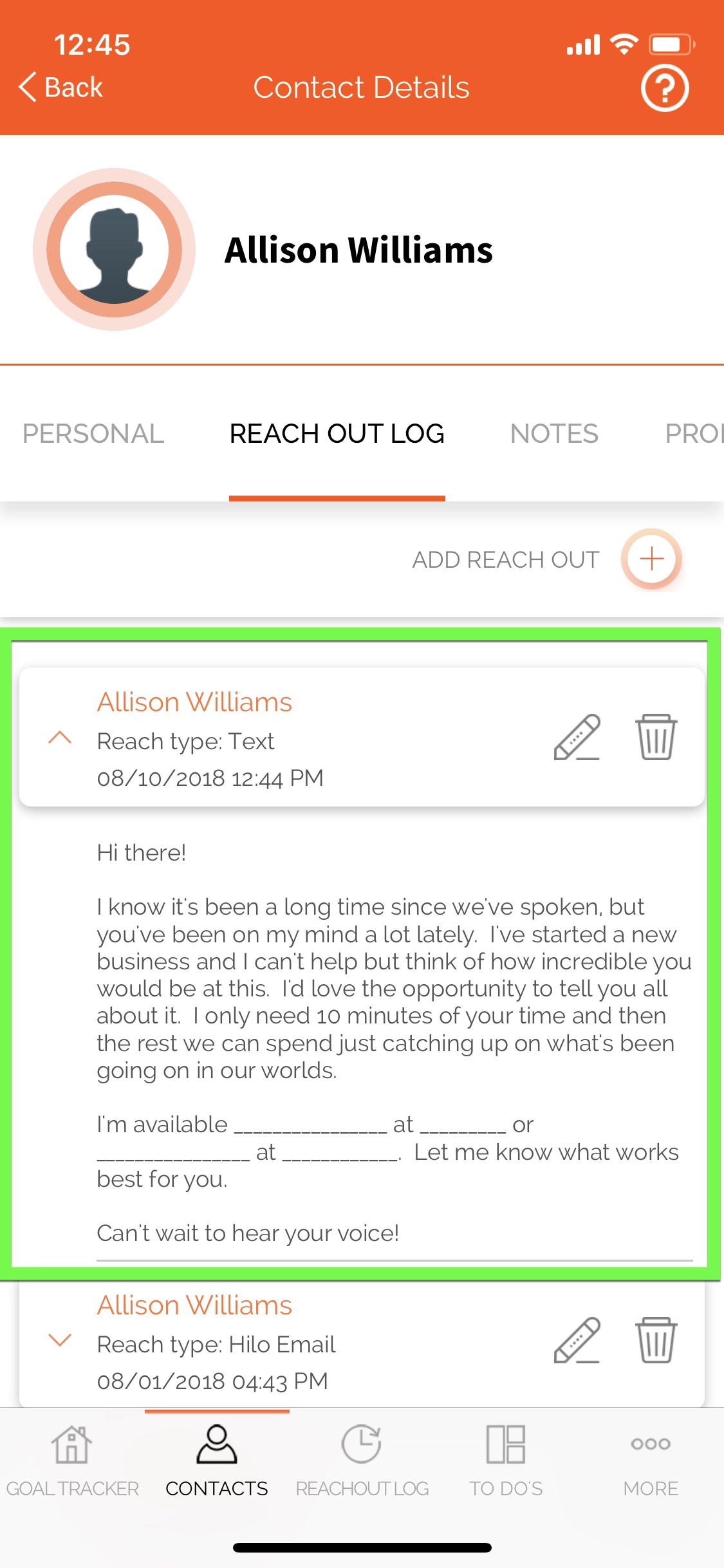
7. Once you click "Confirm" you will be able to see the text in the contact's reach out log records.
Comments
0 comments
Please sign in to leave a comment.