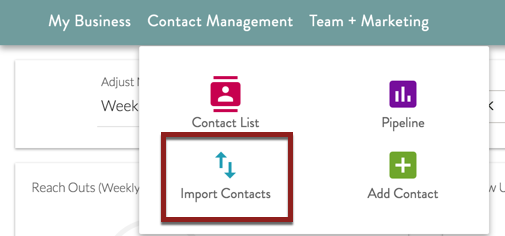
- Under Contact Management in the Header Bar choose “Import Contacts”
- Click “Choose File” in the excel/.csv import section
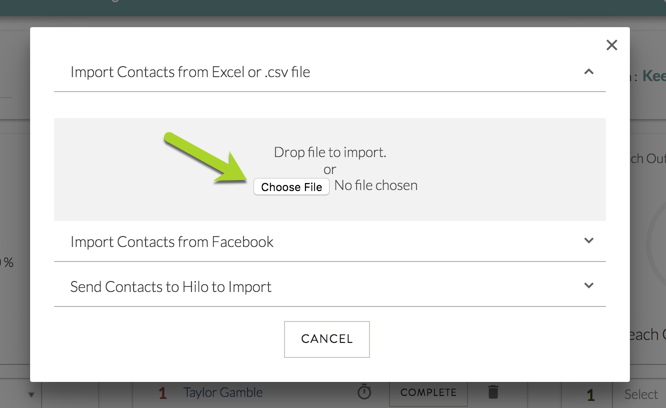
- Choose the file you’d like to upload and click “Open”
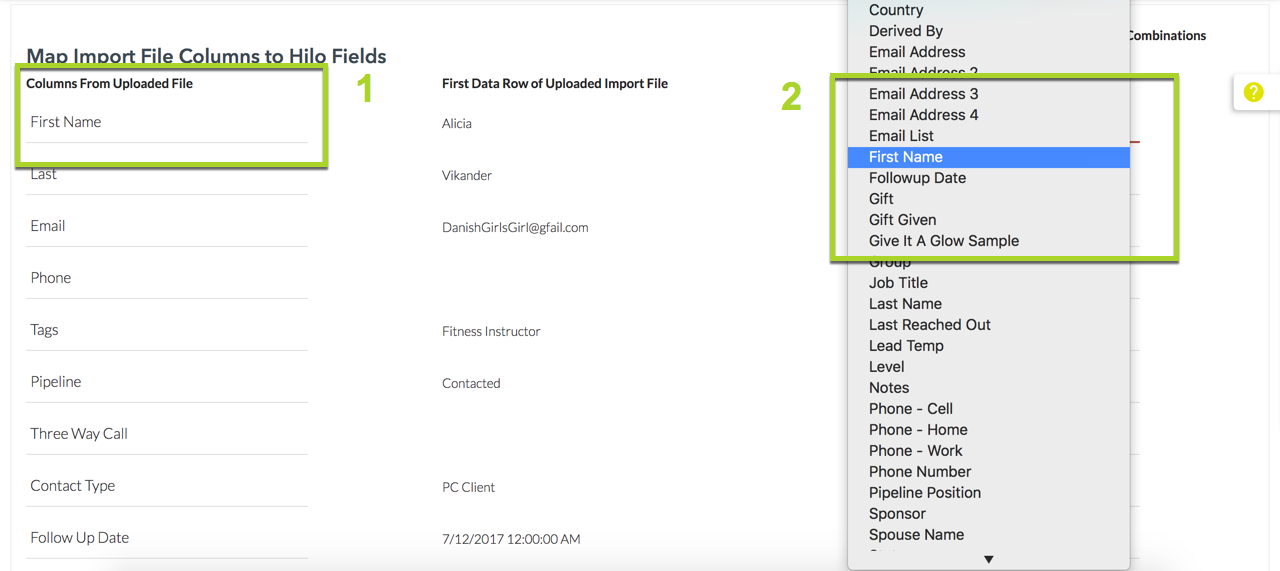
- This will bring up the mapping screen. All we’re doing here is telling Hilo which field you’d like the columns from your spreadsheet imported into. For example: The first name column from your spreadsheet (#1 in the screenshot) should be imported into the First Name field in Hilo so, you will choose First Name from the drop-down menu on the right-hand side of the page (#2 in the screenshot). Do this for all of the columns in the file (each row represents a column from your file).
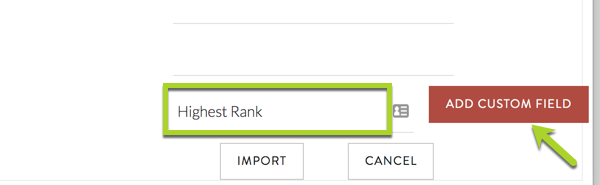
- If there isn’t a Hilo field in the drop-down menu for the column you can create a custom field by typing the name of the custom field in the text box at the bottom of the page and clicking the “Add Custom Field” button. This will add that field to the drop-down menu for you so you can map that column.
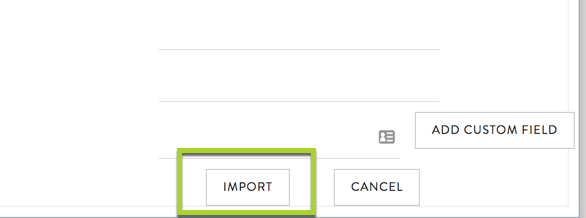
- Once you’re done mapping all the columns, click the “Import” button at the bottom of the page.
How to import contacts from an excel or .csv file

Comments
0 comments
Article is closed for comments.