
Hilo's team functions allow you to create Templates, Campaigns, and Scripts and share them with your downline. This saves TONS of time. Just think about if you spent an hour creating a template and your whole downline could send it out instantly without having to personalize or change anything. If you have 200 people on your team, that hour just gave your team back 200+ hours of work! That's a LOT of prospecting time.
It's important that when you create content for your team that you make the content dynamic, meaning that the system will personalize the material for whoever is sending it out. For example, if Karen creates a template for her team dynamically, her downline member Sarah won't have to go through the template and change Karen's name, contact info, and any links in the document before sending it out. Hilo will automatically make those changes when Sarah sends the material out. This is how we save all those hours for our team!
To create a template dynamically we use replacement tags. In the example below, we're going to show you how you would create a dynamic link to a specific product and activate a button in our template with that link. This is great for product information templates and scripts.
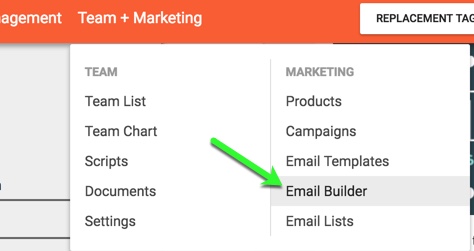
1. Go to the Email Builder
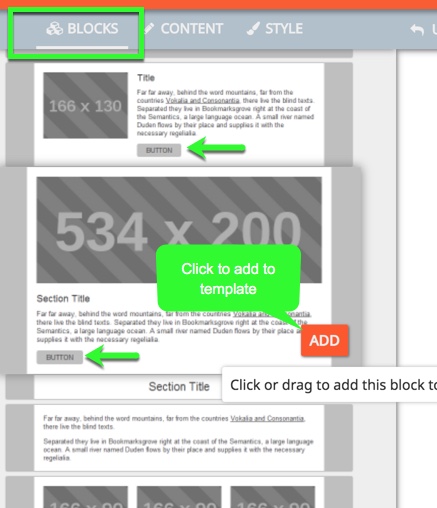
2. Choose any block with a button and add it to your template.
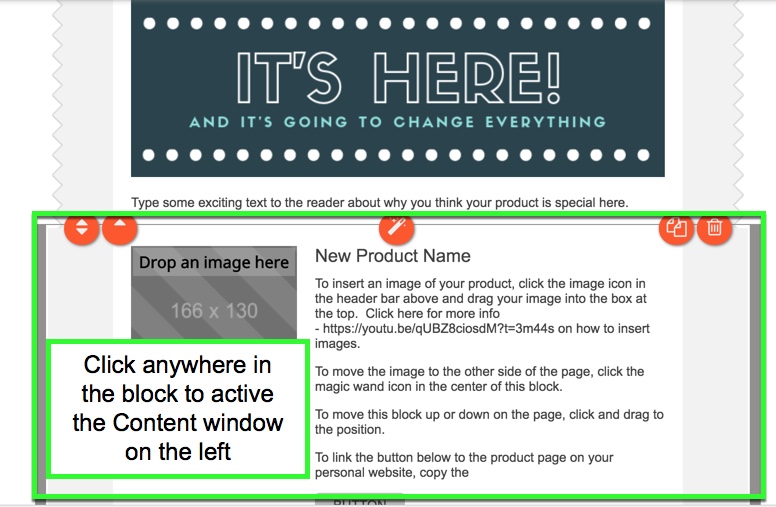
3. Click on the block to activate it.
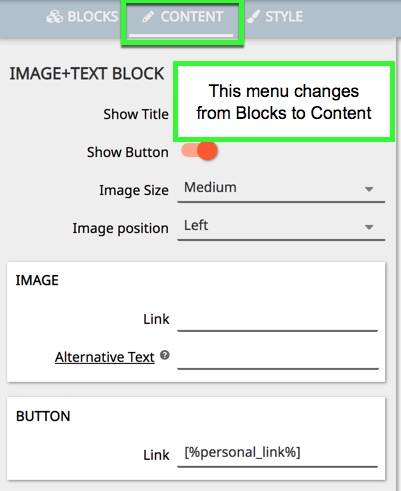
4. This will change the menu on the left from the Blocks to the Content Menu.
5. Open the Replacement Tags menu and highlight and copy the "Personal Link" tag.

6. Paste the Personal Link tag into the Button Link field in the Content Menu.
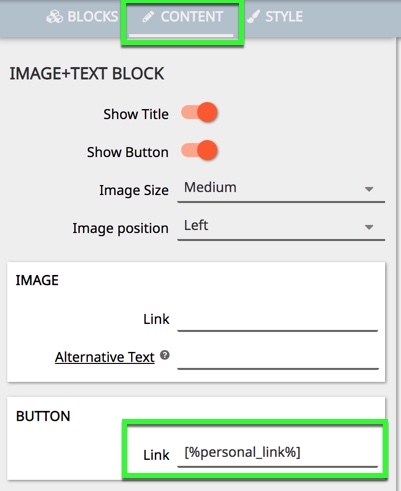
7. If you only wanted the button to link to the sender's main website you could stop here. However, if you'd like to link to a specific product page within the sender's website open that product page in another tab in your browser window. Copy the extension of the URL after the end of the main link. See the photo example below to see where the main web link is located and which part of the URL is the product extension.

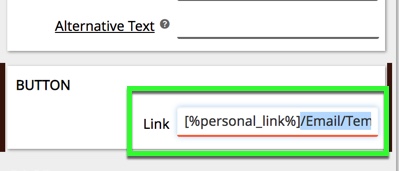
8. Paste just the extension into the Button Link field after the replacement tag.
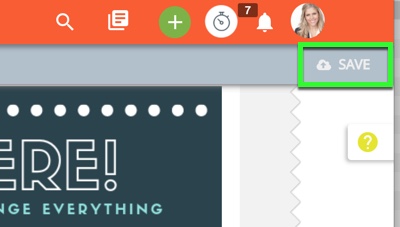
9. Click Save to save your template
Comments
0 comments
Please sign in to leave a comment.