
To import your contacts from Facebook:
1. Request a download of your Facebook data by following the steps below:
- Log into Facebook.
- Access the Profile menu by clicking the triangle icon in the header bar (next to "?") and click "Settings".
- On the left panel, choose "Your Facebook Information".
- Choose "Download Your Information" from the choices on the page.
- On the next page select the date range and choose “HTML” from the format drop-down.
- Click the "Deselect All" link at the top of the list. Then click ONLY the "Friends" checkbox.
- Click the "Create File" button.
- Facebook will process your data and email you a message when your file is ready.
- Once Facebook has emailed you, please click on the “Download Your Information” link found in that email. That link will bring you back to the “Download Your Information” page in Facebook.
- Click the "Available Copies" tab (Next to “Request Copy”).
- Click the “Download” button and enter your password when prompted.
- Unzip the downloaded file.
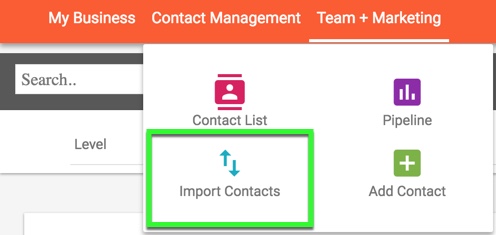
2. Once you have your unzipped Facebook download, under "Contact Management" in the header bar, choose "Import Contacts".
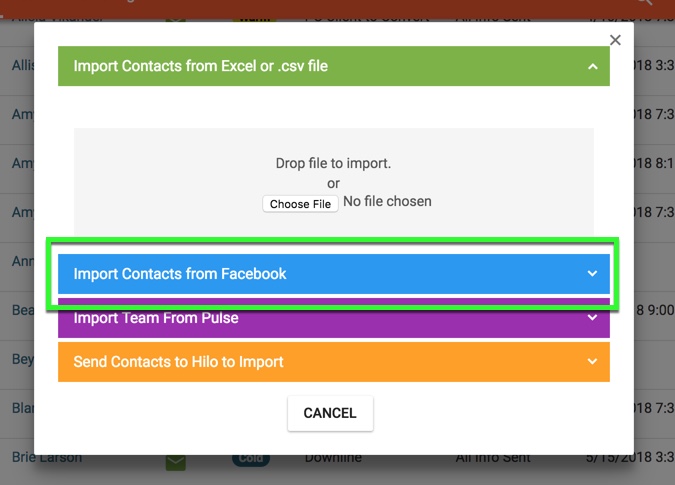
3. Click the blue Facebook bar to activate the Facebook import feature.
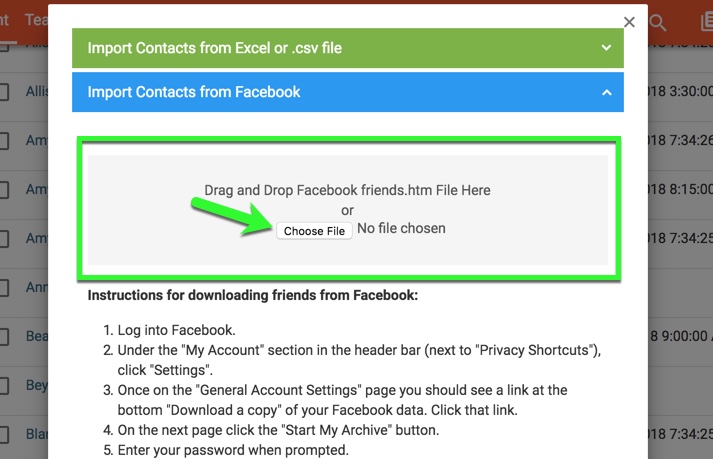
3. Click "Choose File". Open the Friends folder in the file sent to you from Facebook and select the "friends.html" file.
Comments
0 comments
Please sign in to leave a comment.