
There are 2 ways you can send documents saved in Hilo to your contacts.
- As an attachment
- As a link
To send as an attachment:
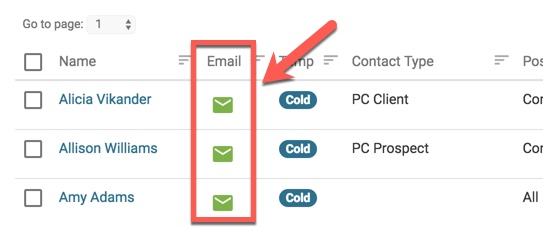
1. Click on the email icon next to a contact's name to open the new email modal window.
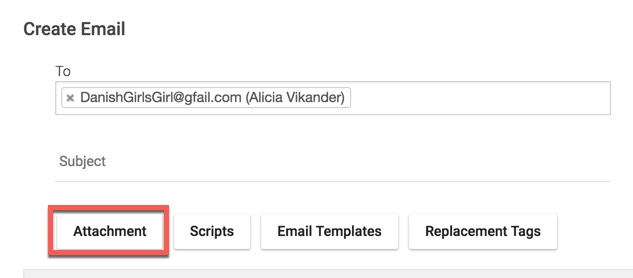
2. In the new email modal window, click the "Attachments" button.
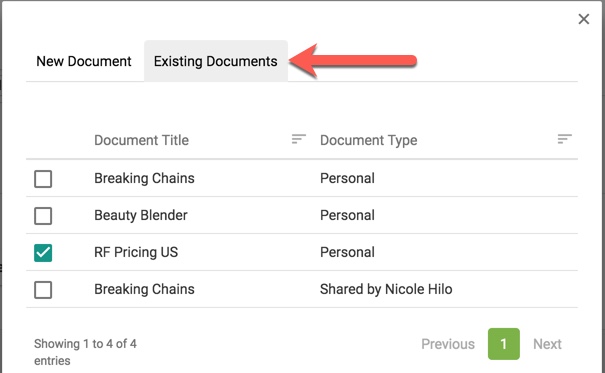
3. Select the "Existing Documents" tab.
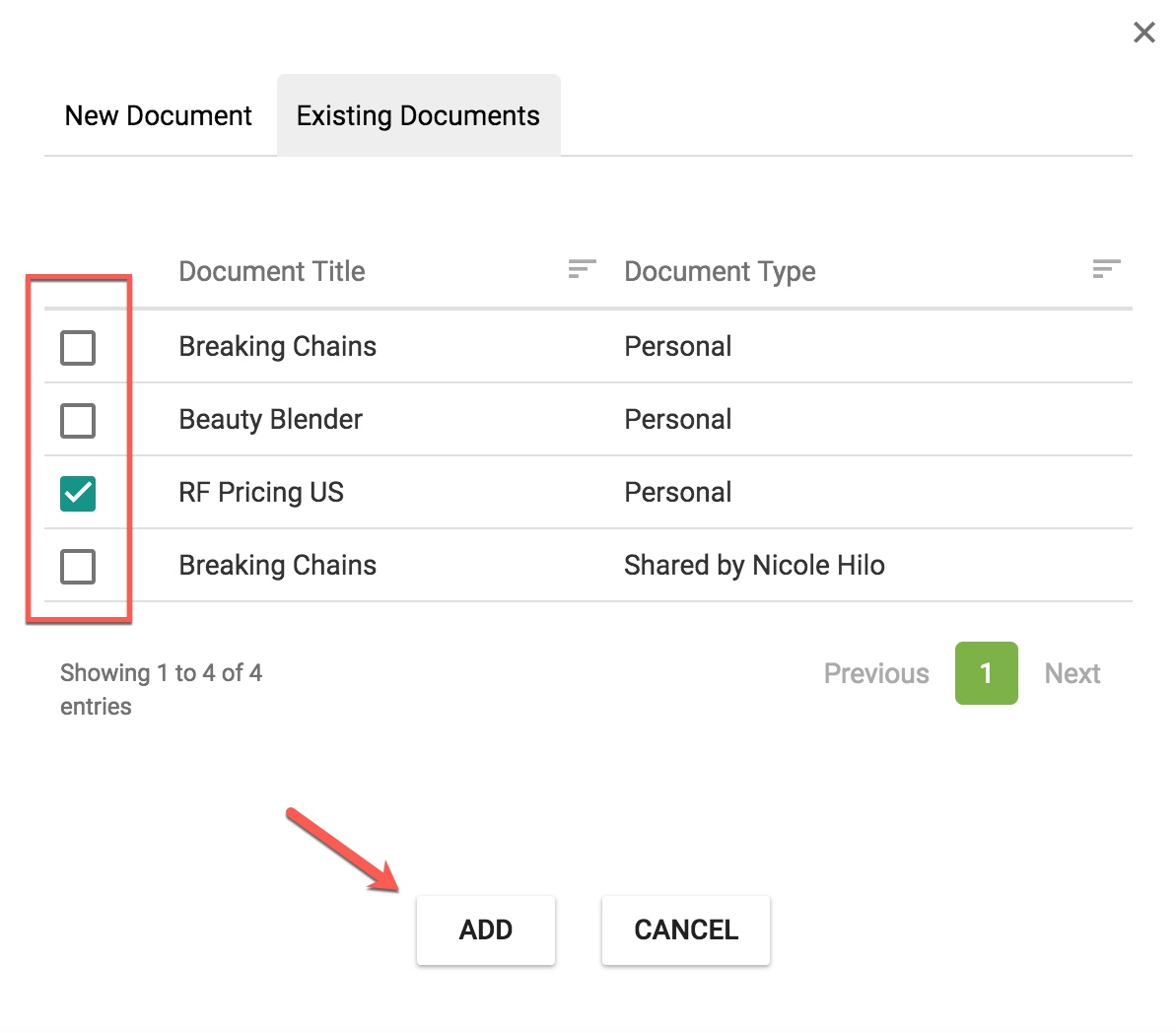
4. Select the document you would like to attach by clicking the checkbox next to the document name and click the "Add" button.
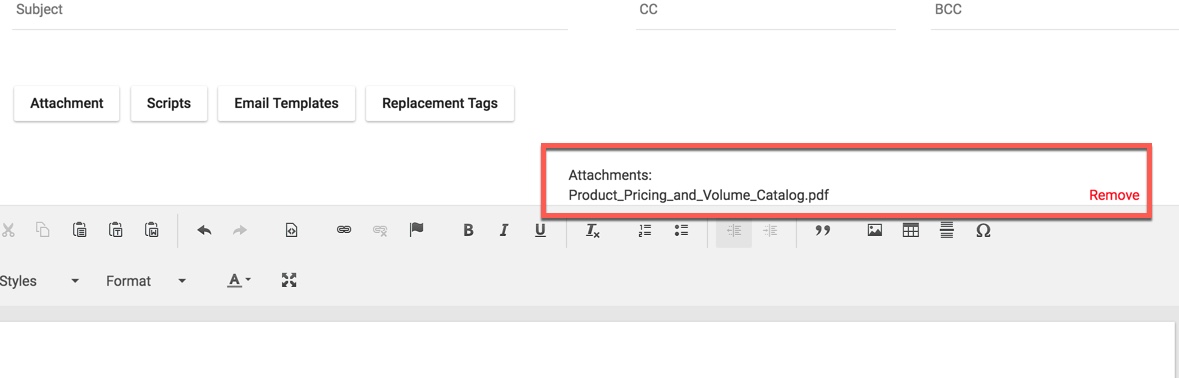
5. The document name will be displayed above the email editor.
To send the document as a link:
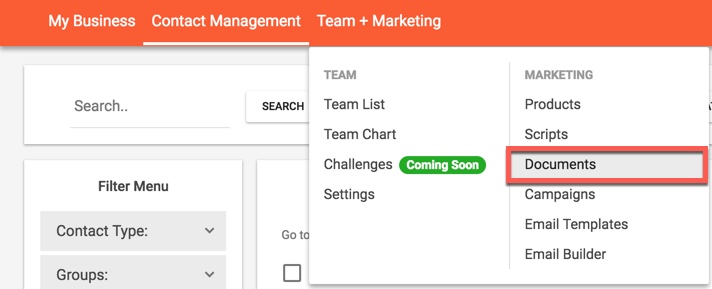
1. Go to the "Documents" page, under "Team + Marketing" in the header bar.
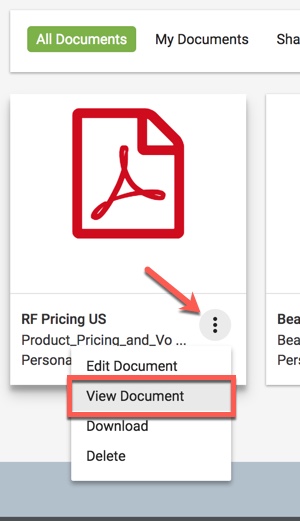
2. Hover over the 3 dots icon in the bottom-right corner of the documents you wish to link out to and select "View Document".
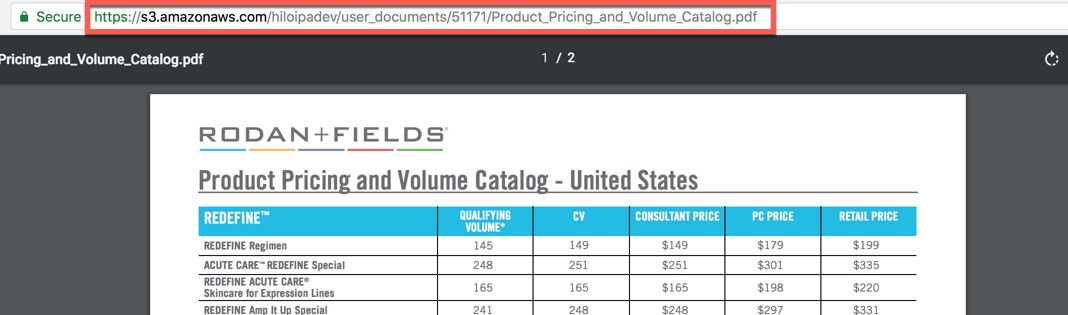
3. This will open the document in a separate tab in your browser. Select the entire URL and click CTRL + C to copy the URL link.
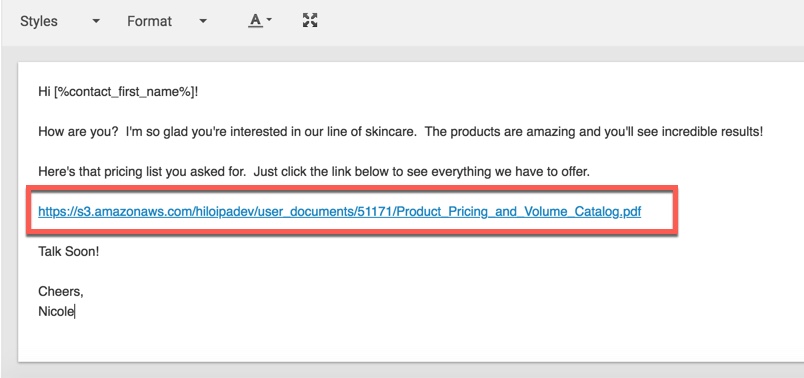
4. Paste the URL link into your email, Facebook message, or another messaging service to send to your contact.
Comments
0 comments
Please sign in to leave a comment.