
To insert an image into an email in Hilo:
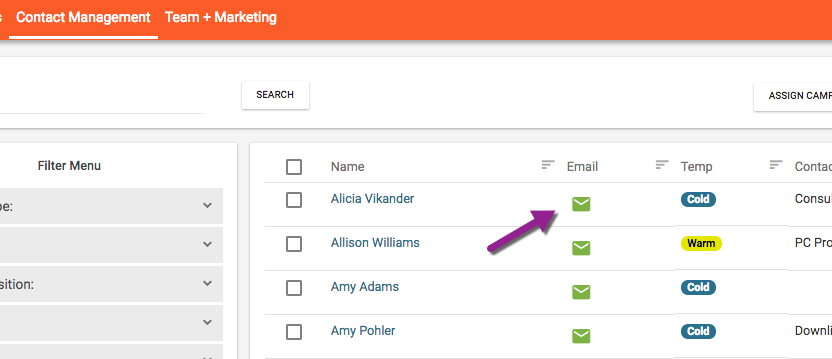
1. Find the contact you would like to send an email to and click the green envelope icon next to their name.
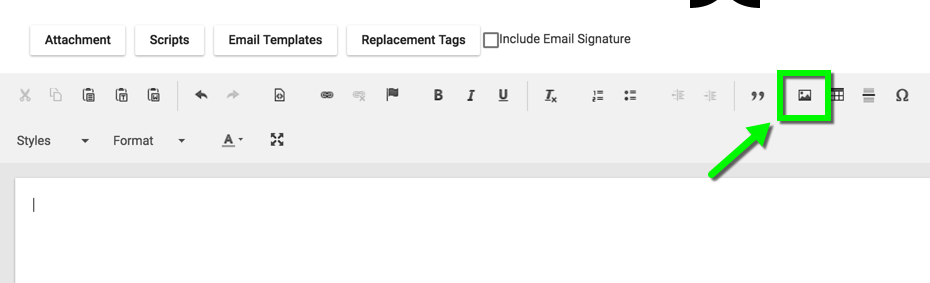
2. Click the image icon in the email editor
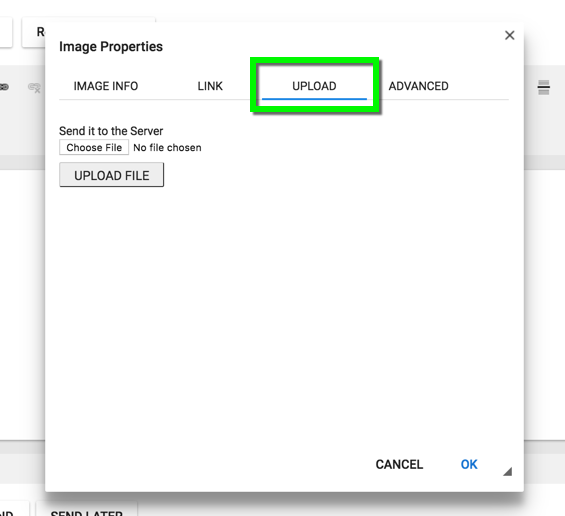
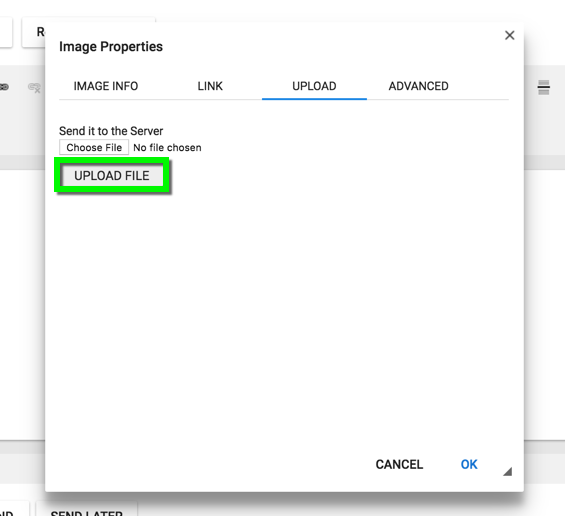
3. To insert an image saved on your computer, click the "Upload" tab in the window.
4. Click "Choose File"
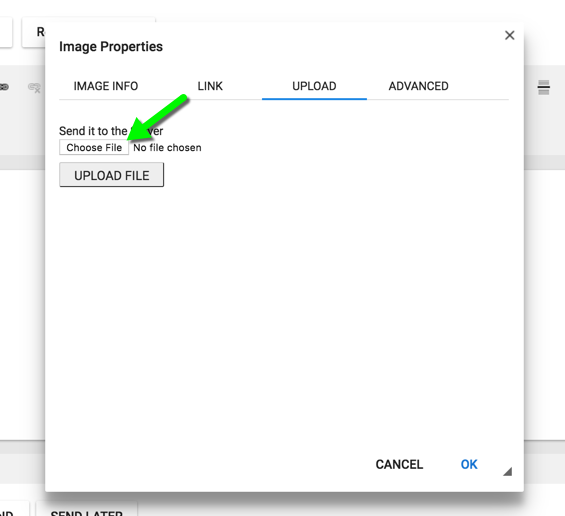
5. Select a file from your computer and click "Upload File".
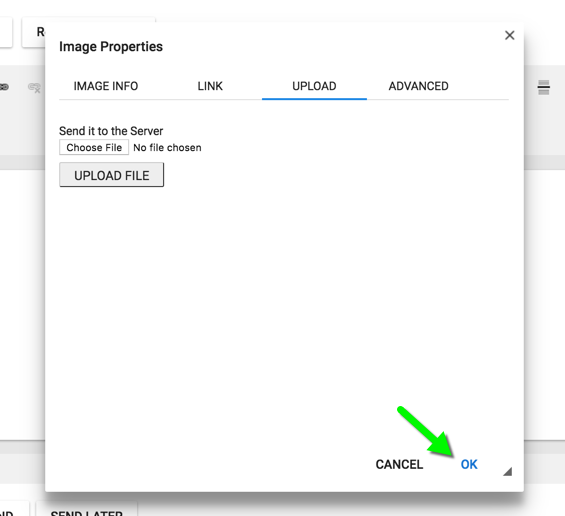
6. Click "OK"
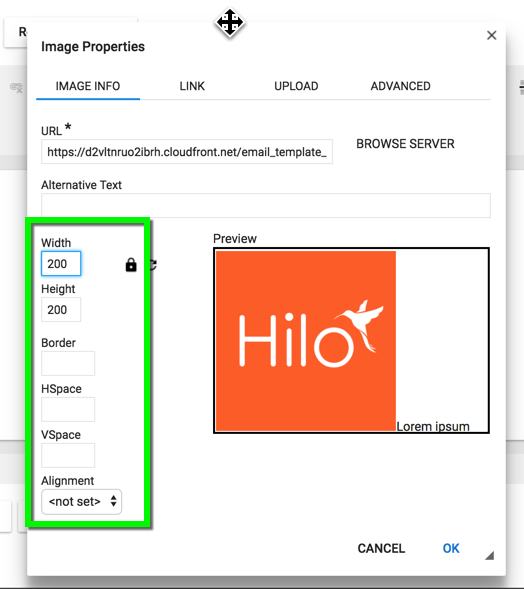
6. Make any size or style adjustments to the image by editing the fields on the left. Once you're satisfied with the image (see preview window), click "OK".
Comments
0 comments
Please sign in to leave a comment.